
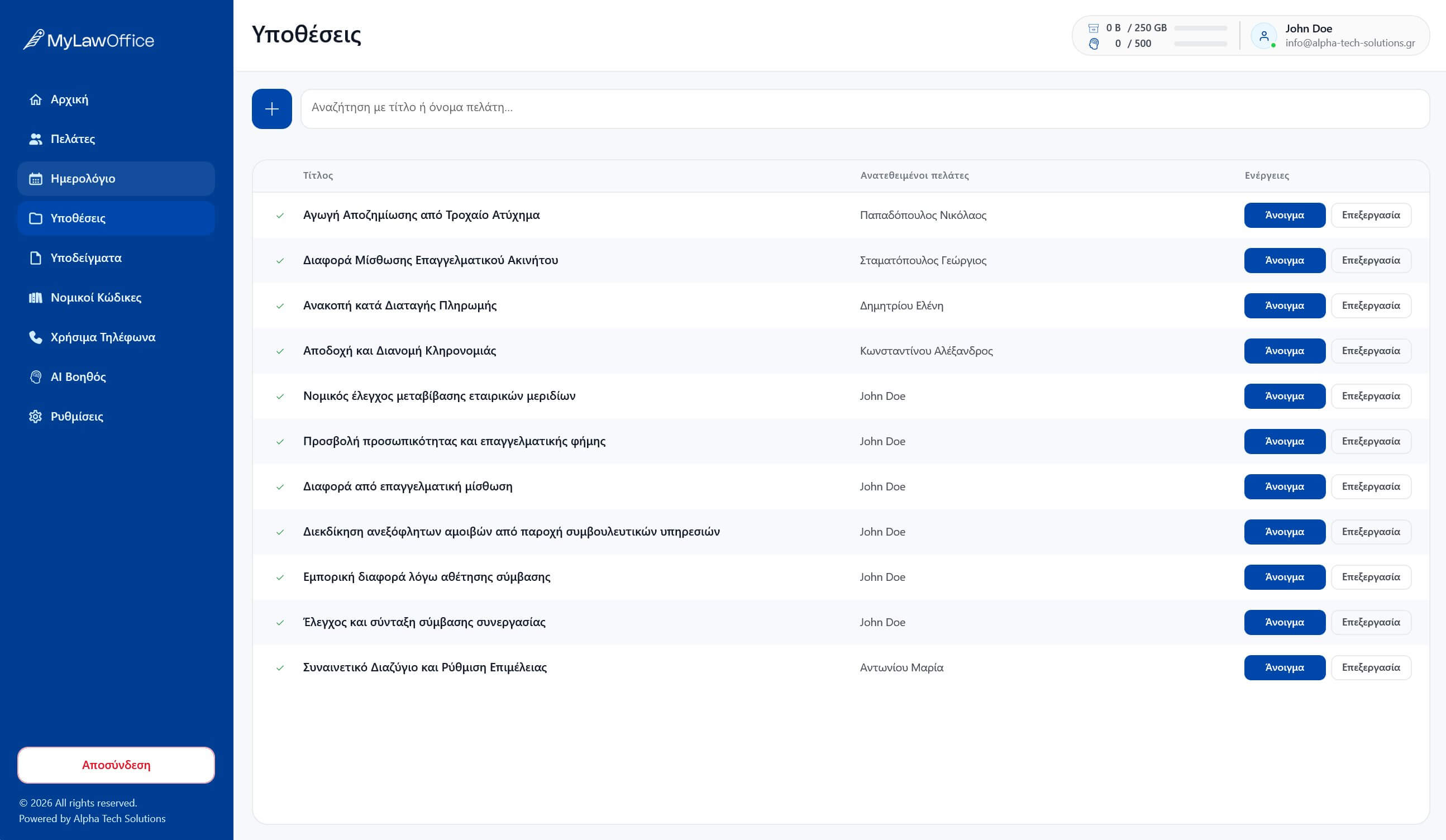
From the first appointment to an organised case file
Illustrative workflow using a fictional matter. The existing interface image above shows the case workspace; it is not a screenshot of this example.
Create the client and case
Use a fictional client such as “Client A” while trying the app. Link the client to a new case, then fill in the court and filing references where applicable.
Attach the working material
Upload a sample document or photo to that case. Check the attachment and add a note describing the next action.
Connect the dates
Record the appointment or hearing in the calendar. For a calculated deadline, first check the supported procedure and review the result and its explanation.
Prepare for work away from the office
Check that the required records and files are available locally before disconnecting. Reconnect to synchronise changes; AI needs an internet connection.
Start migration with active cases and verify the records you enter. For a larger archive, contact support to discuss the work involved. Export is available through your account; readable export of protected content requires your private key.
A case file that brings the work together
A case is more than a document. It includes client information, meetings, collected documents and outstanding actions. myLawOffice connects these records to the case so you can return to the context of your work without piecing together scattered notes.
Clients and people connected to a case
Link a case to one or more clients. Client records and their case connections help you keep the information you need before a call or meeting organised.
Court dates, calendar and deadlines
Keep important dates connected to the matter they concern. The calendar organises hearings and appointments, while deadlines link to the case file. The deadline calculator provides an explanation of its results.
Digital document management for your law office
The application supports uploading documents, files and photos. Organise material collected for a matter and check that it has been saved to the correct case.
Synchronisation helps you continue working across devices. Before working without internet, make sure the specific file is available locally. Offline operation does not replace the initial download of a file.
File contents sync in encrypted form. Technical metadata, such as file size, remains available to the service for operational purposes. Read what is protected and how optional AI processing differs.
Notes and the progress of a case
Collect files and notes in the same case folder. Recording the outcome of a conversation and the next action gives you a useful working history to refer back to.
Continue working across devices
Work with locally available data when you are offline. Changes sync when your device reconnects. Before travelling, check that the files you will need are available on your device.